
Citrix - Schneller Verbindungsstart über Rangee Browser
The Rangee Browser can start a Citrix session fully automatically - without any further user interaction and, optionally, without a visible browser window. Compared to a connection in ICA client mode (“Appliance”, “StoreFront”, or “Selfservice”), this approach provides a significant speed advantage until the session starts (approx. 10 seconds via the browser versus approx. 25 seconds in the other modes).
Setup
Rangee Browser
Within the Commbox, navigate to Connections -> Rangee Browser and create a New Connection .
The following settings are relevant:
| Setting | Value | Description |
|---|---|---|
| Connection name | Freely selectable | Name of the connection displayed on the desktop or in the start menu |
| Start page | URL of the Citrix web interface | Start page of the browser |
| Browser profile | Do not save | The browser starts with a completely fresh browser profile every time |
| Enable tray mode | Optional | Allows the browser to run invisibly for the user in the system tray |
| Start in tray | Optional | Starts the browser directly in the system tray without a visible window (requires “Enable tray mode”) |
| Alternative user agent | Enabled | Suppresses automatic detection of an installed Citrix client. This setting is mandatory for automatic login |
| Login mode | Freely selectable | All RangeeOS login methods are supported. In combination with “Start in tray”, an Active Directory–based login method is recommended, as the user will not receive feedback about incorrect login credentials when the browser is started in the background. See also: ActiveDirectory configuration or RangeeOS – Password change without a globally enforced domain login When using the “User credentials” or “Global user credentials” modes, the corresponding credentials must be preconfigured. |
| Automatic login | Enabled | Enables the use of the selected login mode |
| Login type | Web portal (RD Web Access, Citrix StoreFront) | Enables automatic login on a web page |
| Automatically start first Citrix application | Optional | Automatically starts the first Citrix application found on the web interface |
| Citrix application for automatic start | Optional | Name of the Citrix application to be started automatically. |
| Execute Citrix application start only on first page load | Optional | Ensures that the automatic application start is executed only on the first page load |
Citrix Workspace App
Within the Commbox, navigate to Connections -> Citrix Workspace -> Global Settings .
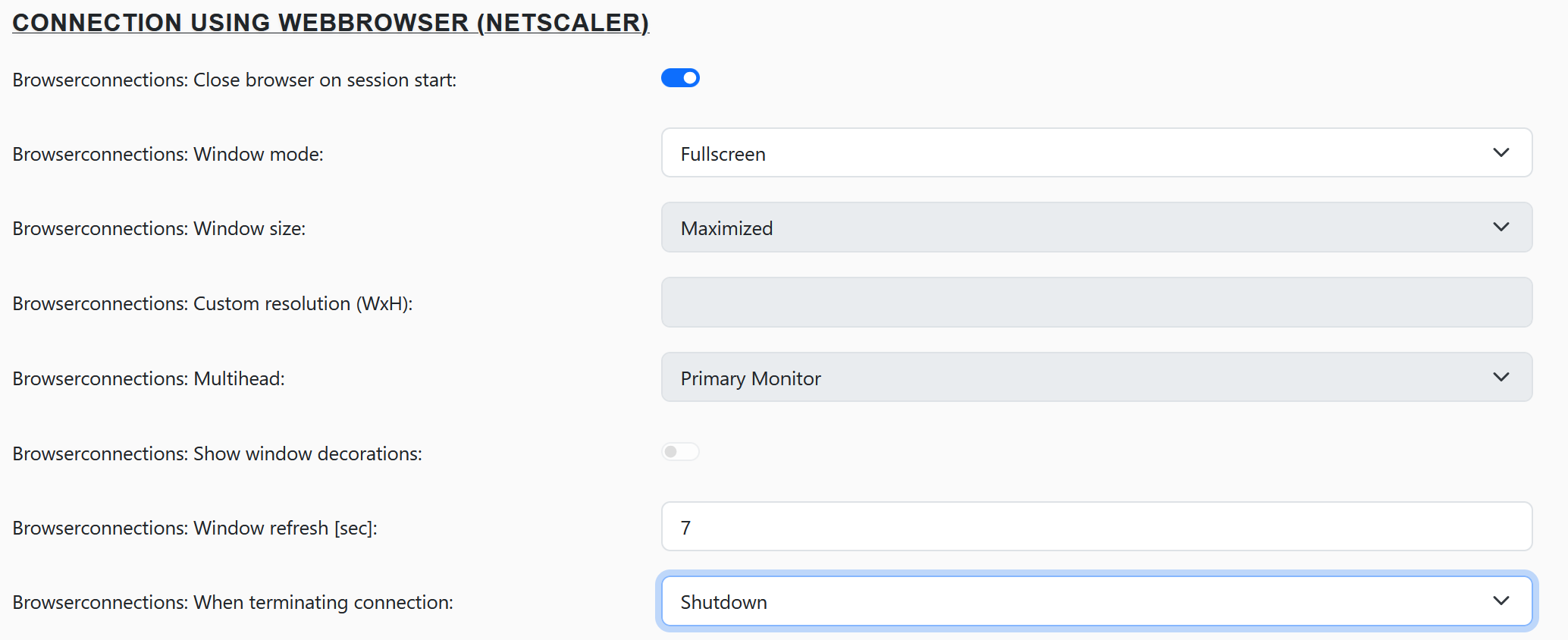
Under the heading “Connections via web browser (NetScaler)”, you will find options that apply to Citrix sessions started from a browser.
For example, you can configure the browser to close automatically after a connection has been started, as well as define options for the behavior when these sessions end.