
RangeeOS - Monitoring Network Connectivity via PING
In case of recurring connection drops, it can be helpful to monitor the availability of the network. This article describes how to place a small script on a client that continuously pings a specified server and logs the results. With these results, you can, for example:
- determine whether a problem exists in the internal network or on a WAN link
- correlate connection drops of a connection with actual network outages (protocol errors vs. network errors)
Configuring the Script
Navigate to Tools (Connections in RangeeOS 12.00 or earlier) -> Scripts -> New Connection.
To run the script completely invisibly for the user, set it up as follows:
- Connection name: freely selectable (e.g.: Pinglog)
_Script (Adjust_ *#ZielIp# according to your needs):# Define target address - please adjust
target=#ZielIp#
# Function for continuous ping to the gateway
function ping_target {
echo "----- Ping to Server -----" >> $log_file
ping -O $target | while read pong; do
echo "$(date): $pong" >> $log_file
done
}
ping_target - Automatic start: on
- Create desktop shortcut: off
- Create shortcut in start menu: off
- Show notification on start: offAfter a restart, the ping starts automatically.
Reading the Results
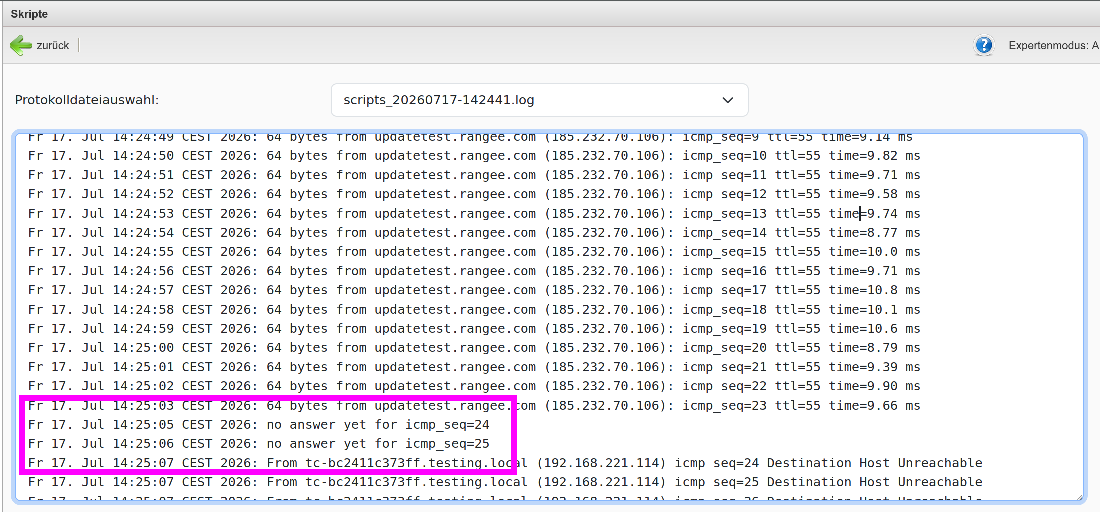
You can read the results of the ping attempts under Tools (Connections in RangeeOS 12.00 or earlier) -> Scripts -> Your connection name -> Log file. This file may look something like this: