

RangeeOS - Installation à partir d’une clé USB
Ce guide explique comment créer une clé USB amorçable à partir d’un fichier ISO pour installer RangeeOS.
En plus du fichier ISO, vous aurez besoin d’un outil permettant de créer une clé USB amorçable. Cet article fournit des instructions pour Rufus, UNetbootin et Ventoy.
- Étape 1 – Préparation d’une clé USB
- Étape 2 – Installation sur le Thinclient
- Étape 3 – Première configuration
Étape 1 – Préparation d’une clé USB
Commencez par formater votre clé USB avec le système de fichiers FAT32. Sous Windows, faites un clic droit sur la clé USB puis sélectionnez Formater….
Choisissez FAT32 (par défaut) comme„Préparation d’une clé USB“ et cochez l’option Formatage rapide.
Pour transférer l’image ISO sur la clé USB, vous pouvez utiliser des outils tels que Rufus, UNetbooting , Ventoy ou similaires.
Procédure avec Rufus
- Branchez la clé USB sur un ordinateur Windows (desktop ou portable).
- Lancez Rufus
- Sous Image, sélectionnez le fichier ISO téléchargé
- Sous Périphérique, choisissez votre clé USB
- Cliquez sur Démarrer
- Cliquez ensuite sur OK.
- Attendez la fin du processus, puis éjectez la clé USB en toute sécurité
Procédure avec UNetbootin
- Branchez la clé USB sur un ordinateur Windows (desktop ou portable)
- Lancez UNetbootin.
- Sous Image, sélectionnez le fichier ISO téléchargé
- Sous Périphérique, choisissez votre clé USB.
- Cliquez ensuite sur OK.
- Attendez la fin du processus, puis éjectez la clé USB en toute sécurité.
Procédure avec Ventoy
- Branchez la clé USB sur un ordinateur Windows (desktop ou portable)
- Lancez Ventoy2Disk.exe
- Dans Périphérique, sélectionnez votre clé USB
- Cliquez sur Installer puis confirmez 2x avec Oui
- Une fois l’installation terminée, un message indiquera que Ventoy a été installé avec succès
- Dans Ventoy (Périphérique), vous devriez maintenant voir la même version que dans Ventoy (Local)
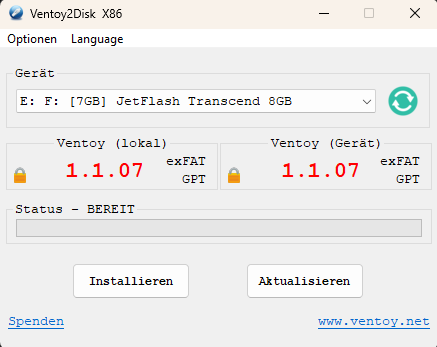
- Copiez le fichier ISO sur la clé USB, puis éjectez la clé USB en toute sécurité.
Étape 2 – Installation sur le Thinclient
Branchez la clé USB sur votre Thin Client et démarrez celui-ci. Au démarrage, appuyez plusieurs fois sur la touche permettant d’accéder au menu de démarrage (Boot Menu) ou au BIOS – la touche varie selon l’appareil et est généralement l’une des suivantes Entf , F2 , ESC , F9 , F11 und F12 .
Démarrez ensuite à partir de votre clé USB, sélectionnez „Install Rangee OS“ dans les menus, puis validez les différentes étapes
Une fois l’installation terminée, choisissez „Reboot“ dans le menu pour redémarrer la machine.
Étape 3 – Première configuration
Après le redémarrage, l’assistant de première installation démarre. Ici, vous pouvez déjà effectuer des réglages réseau et créer des connexions.
Une fois la première configuration terminée, le Thin Client redémarre. Vous pouvez ensuite réaliser toutes les autres configurations via la Kommbox, dans laquelle l’utilisateur par défaut est „administrator“ avec le mot de passe „engels“.
Vous trouverez toutes les informations complémentaires concernant la configuration et la mise en place du système d’exploitation RangeeOS dans notre aktuellen Handbuch.
En cas de problèmes et/ou de questions, vous pouvez bien sûr contacter l’équipe de support Rangee – soit via le Supportformular soit en envoyant un e-mail à support@rangee.com.
Lors de la première configuration, le système se connecte au serveur de licences Rangee. Si aucune licence n’a encore été attribuée à l’appareil, une licence de démonstration de 30 jours entièrement fonctionnelle est automatiquement activée.
Dans les dix derniers jours avant son expiration, un avertissement apparaît. Vous pouvez alors passer à tout moment à une licence Lifetime ou Subscription.
Pour plus d’informations sur la gestion des licences : Rangee Lizensierung