

RangeeOS - Enroll MOK for Secure Boot
Last modified by René Vögeli on 2026/01/27 13:51
Starting with RangeeOS 13.00, Secure Boot can be used on the devices. However, before Secure Boot can be enabled on your own hardware, it must be ensured that our Rangee MOK (Machine Owner Key) is installed on the device.
There are two options to start the installation of the MOK.
Rolling out the key via...
... an existing RangeeOS installation
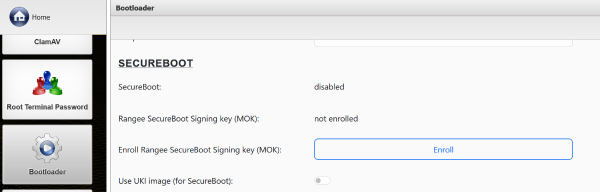
- Navigate in the Kommbox to System -> Bootloader.
- Click the Enroll button next to the option Enroll Rangee SecureBoot Signing key (MOK).
- Note the displayed PIN and click Submit.
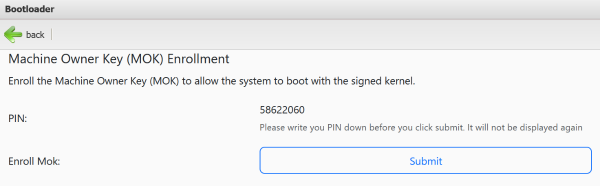
- Restart the client and follow the further instructions.
... a RangeeOS installation medium
- Create a USB stick for the RangeeOS installation as described here.
- Boot the client from the USB stick.
- (Optional) First perform the installation of RangeeOS on the device.
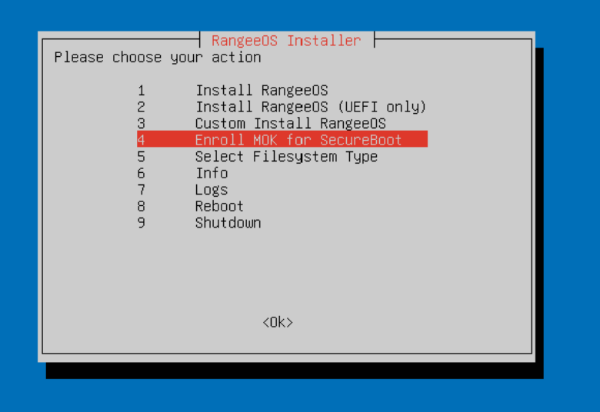
- Select the option Enroll MOK for Secure Boot.
- Confirm the security prompt with Yes.
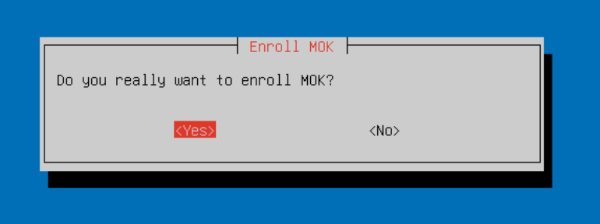
- Note the password displayed here.
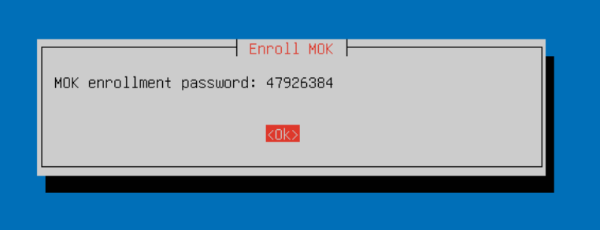
- Restart the client and follow the further instructions.
Transferring the key to the BIOS
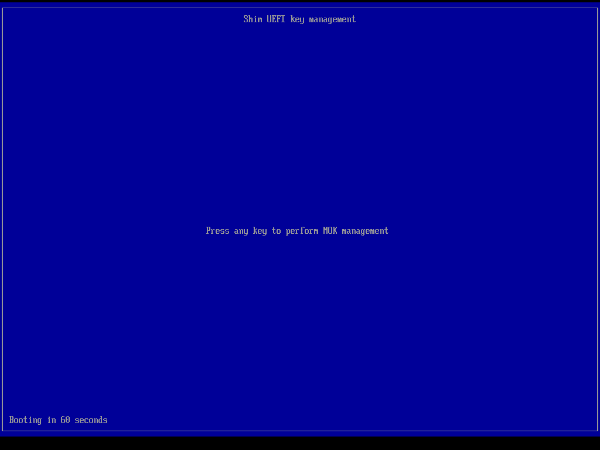
After restarting, the client automatically starts the Shim UEFI Key Management, which guides you through the required steps.
- Press any key within 60 seconds to start the installation of the key. If no key is pressed within this time, the rollout process must be started again.
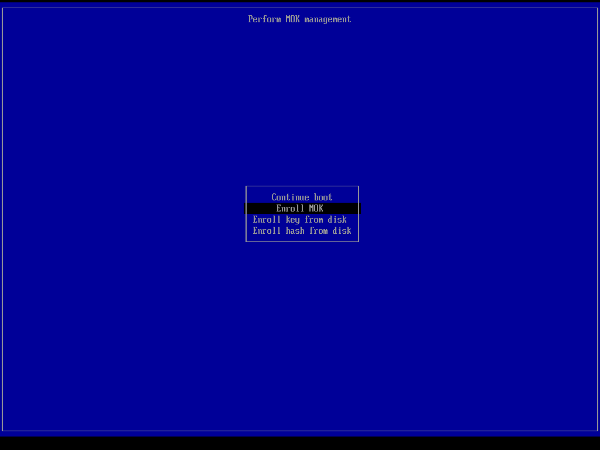
- Select Enroll MOK.
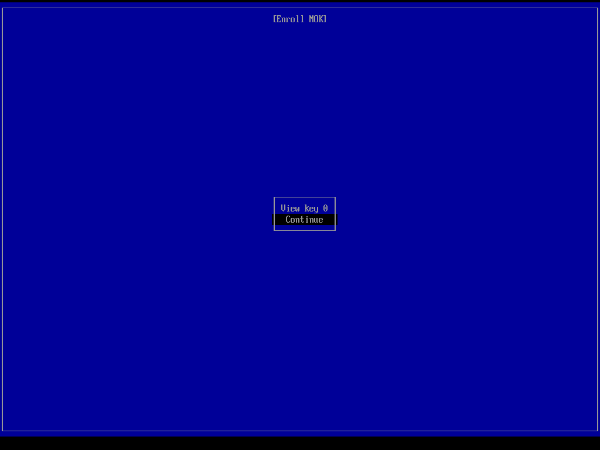
- Select Continue.
- Select Yes.
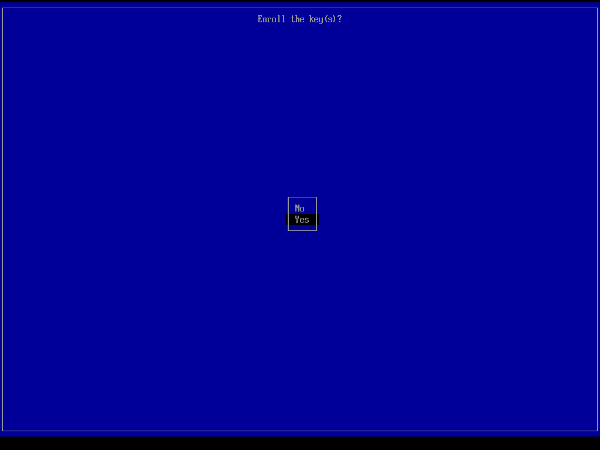
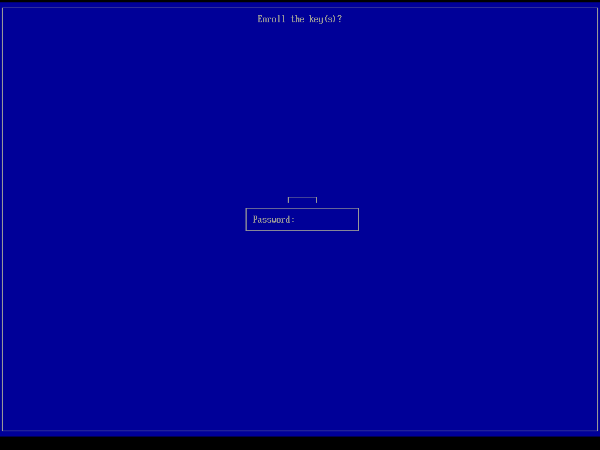
- Enter the previously noted PIN.
- Select Reboot.
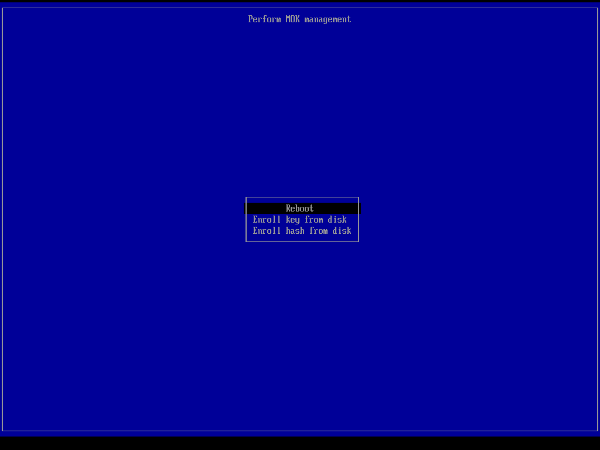
The rollout of the MOK is now complete. You can now restart the device and enable Secure Boot in the BIOS.