
FreeRDP - USB-Redirection of supported Plug and Play devices
Server Settings
Ensure that the integration of redirected USB devices is allowed on the server side.
By default, this function is disabled and must first be enabled via Group Policy.
Group Policy
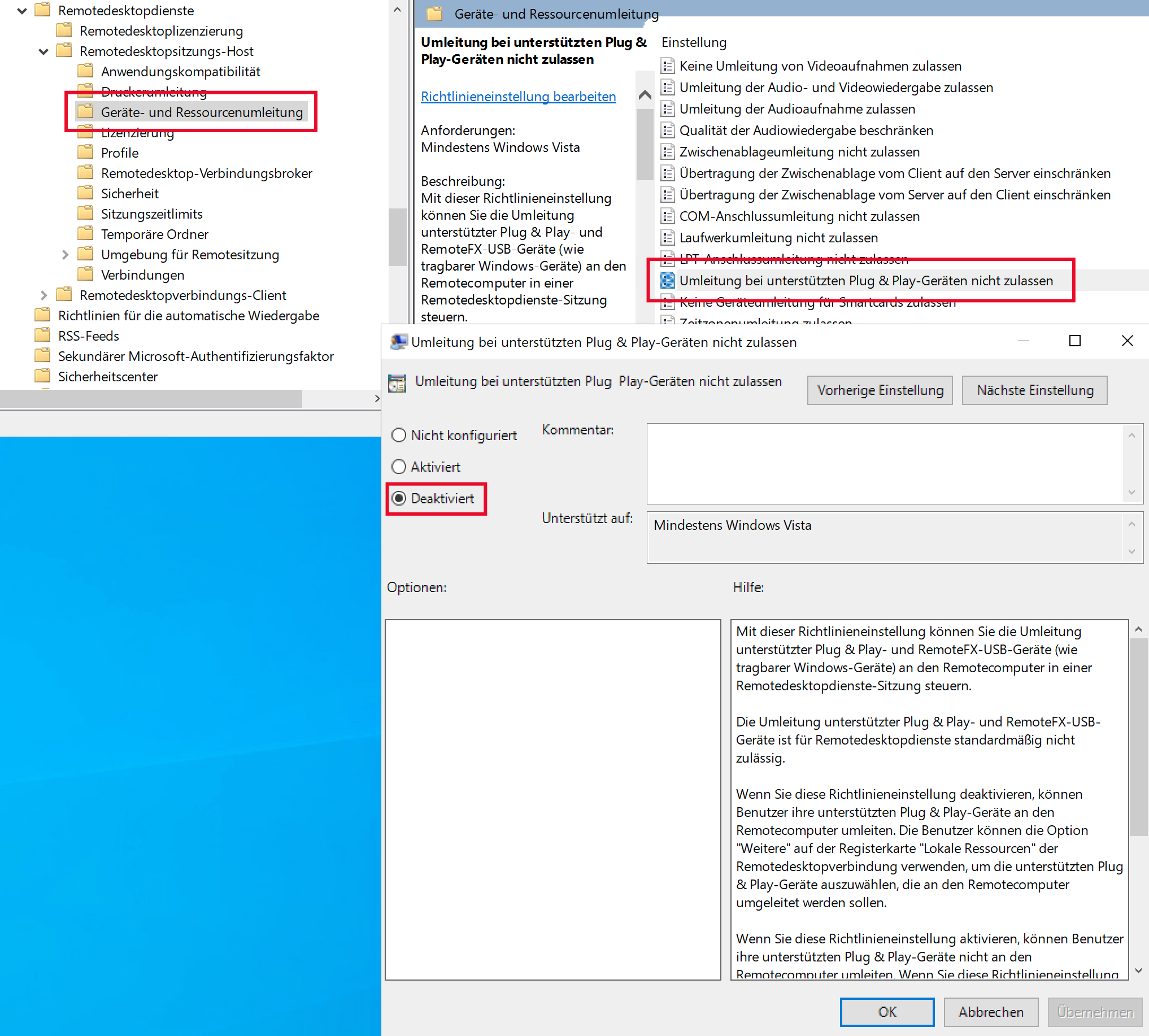
The required settings can be found in the Group Policy Editor (locally or in the domain) under:
Computer Configuration
→ Administrative Templates
→ Windows Components
→ Remote Desktop Services
→ Remote Desktop Session Host
→ Device and Resource Redirection
→ “Do not allow supported Plug and Play device redirection”
→
Disabled
Session Collection Configuration
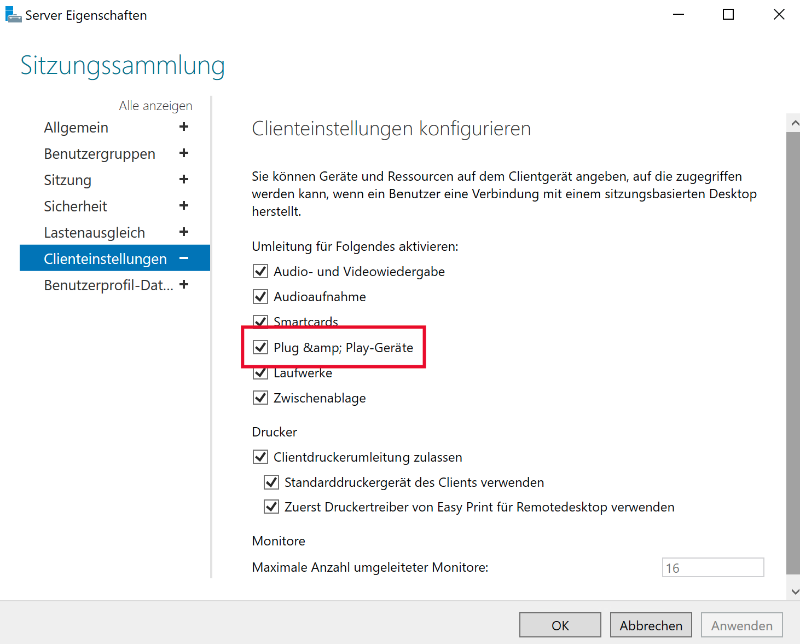
Additionally, ensure that redirection of supported Plug & Play devices is allowed within the session collection configuration.
By default, this option is enabled.
To do so, select the session collection to be configured in the Server Manager under
Remote Desktop Services
and navigate via
Tasks
→
Edit Properties
to the
Client Settings
.
Verify that the option Plug & Play Devices is enabled.
Client Settings
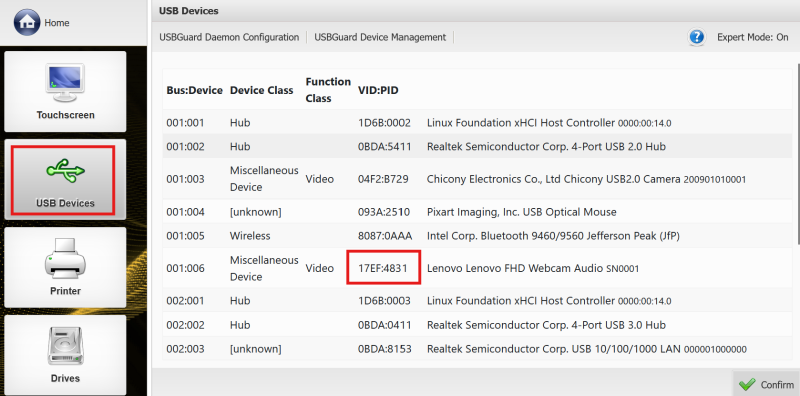
Identify your USB device in the Kommbox via Peripherals → USB Devices and note the VID:PID combination (vendor and product ID).
Transfer the determined USB device VID:PID combination into the FreeRDP configuration.
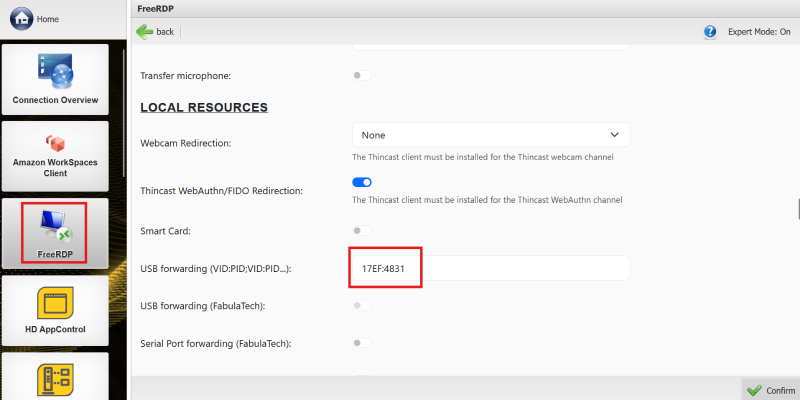
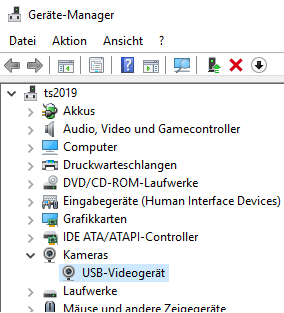
As soon as you establish the connection, the redirected USB device will appear in Device Manager.
In this example, it is a Lenovo webcam: