

Citrix - Démarrage rapide de la connexion via Rangee Browser
Avec la version de firmware x64 11.00 build 335, le Rangee Browser reçoit une mise à jour permettant de démarrer automatiquement une session Citrix sans aucune intervention utilisateur et, en option, sans fenêtre de navigateur visible. Cette méthode offre, par rapport à une connexion en mode ICA Client "Appliance", "Storefront" ou "Selfservice", un gain de vitesse significatif pour le démarrage d’une session (10 secondes via le navigateur contre 25 secondes dans les autres modes).
Configuration
Rangee Browser
Dans la Kommbox, accédez à Connexions -> Configuration - Rangee Browser et créez une Nouvelles Connexions .
Les paramètres suivants sont pertinents pour cette configuration :
| Paramètre | Valeur | Signification |
|---|---|---|
| Nom de la connexion | Libre | Nom affiché sur le bureau ou dans le menu démarrer |
| Page d’accueil | URL de l’interface Web Citrix | Page de démarrage du navigateur |
| Profil du navigateur | Ne pas enregistrer | Le navigateur démarre à chaque fois avec un profil complètement neuf |
| Démarrer dans le Tray | Optionnel | Permet au navigateur de s’exécuter de manière invisible dans la barre système pour l’utilisateur |
| Starte im Tray | Optionnel | Démarre le navigateur sans fenêtre visible (nécessite "Activer le mode Tray ") directement dans la barre système |
| Mode de connexion | Libre | Toutes les méthodes de connexion de RangeeOS sont supportées. En combinaison avec " Démarrer dans le Tray " , il est recommandé d’utiliser la variante " Active Directory," car l’utilisateur ne reçoit aucune information sur les erreurs de connexion. Voir ActiveDirectory Konfiguration oder RangeeOS - Passwortwechsel ohne global vorgeschaltete Domänen-Anmeldung En mode " Données utilisateur " ou " Données utilisateur globales ", les données utilisateur à utiliser doivent être pré-remplies. |
| Connexion automatique | Activé | Active la demande/utilisation du " mode de connexion choisi " |
| Type de connexion | Portail Web (RD Web Access, Citrix Storefront) | Active la fonction de connexion automatique à une page web |
| Application Citrix pour démarrage automatique | Optionnel | Nom d’une application Citrix à démarrer automatiquement. Après une connexion réussie sur l’interface Web Citrix, l’application correspondant exactement à ce nom sera démarrée automatiquement |
| User Agent alternatif | Activé | Cette option désactive la détection automatique d’un client Citrix installé. Cela est obligatoire pour une connexion automatique |
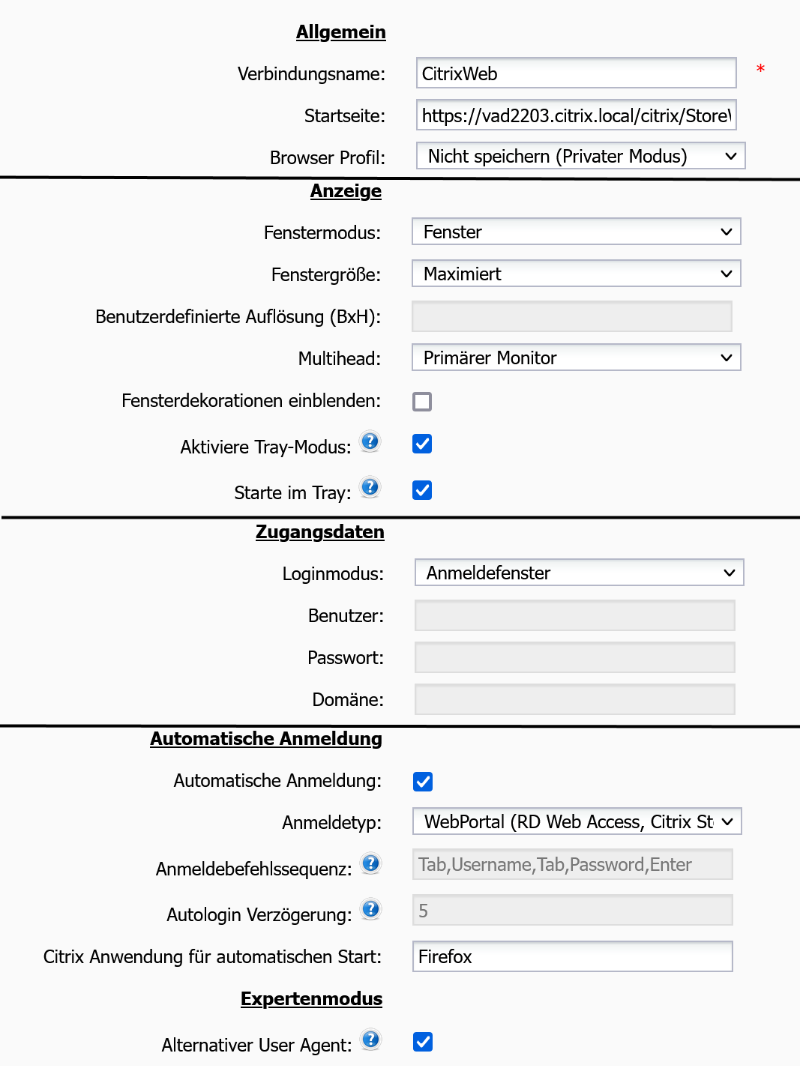
Rangee Browser Konfiguration -> Neue Verbindung (gekürzt)
Client ICA
Dans la Kommbox, accédez à Connexions -> CONFIGURATION - ICA -> Paramètres généraux: .
Sous la section " Connexions via le navigateur (NetScaler) ", vous trouverez des options applicables aux sessions Citrix démarrées depuis le navigateur.
Par exemple, il est possible de fermer automatiquement le navigateur après le démarrage d’une connexion et de définir une option de fin de connexion pour ces sessions.
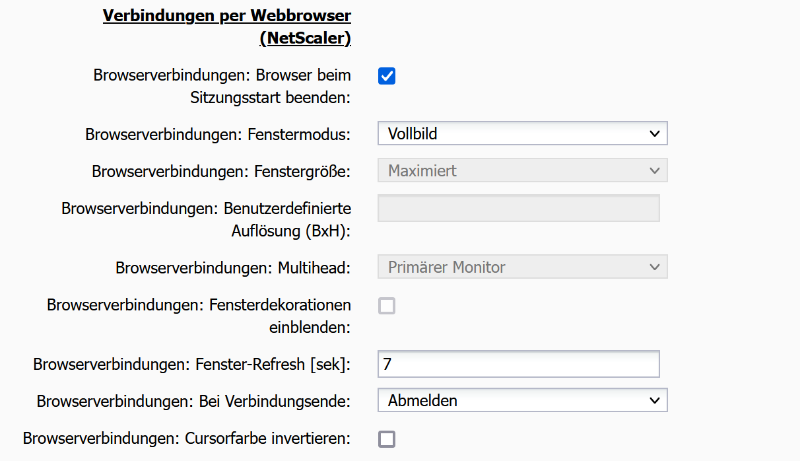
ICA-Konfiguration -> Globale Einstellungen -> Verbindungen per Webbrowser (NetScaler)