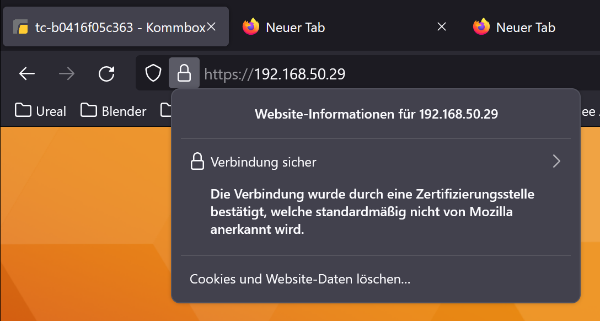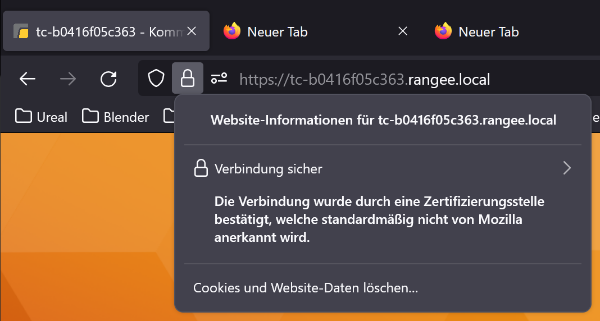

General - Replacing the Kommbox or TCMS web server certificate
Last modified by Tobias Wintrich on 2026/09/18 09:05
The web server certificate used on a RangeeOS (with or without TCMS) can be replaced if required. The certificate can be provided either Base64-encoded (PEM) or in PFX format.
Creating a certificate signing request file (optional)
- Adjust the parameters of the following command according to your requirements and execute it on the device:openssl req -newkey rsa:4096 -sha256 -keyout key.pem -out req.pem \
-subj "/C=DE/ST=Bundesland/L=Stadt/O=Einrichtung/OU=Abteilung/OU=Team/CN=<FQDN>" \
-addext "subjectAltName = DNS:<DNS>,IP:<IP>"- C/ST/L/O/OU
Optional and freely selectable - <FQDN>:
The hostname under which the RangeeOS will later be addressed - <DNS>:
Hostname of the TCMS for which the certificate should be valid - <IP>:
Optional. IP of the TCMS for which the certificate should be valid. If the IP should not be part of the certificate, remove the corresponding section. - Example of a complete command:
openssl req -newkey rsa:4096 -sha256 -keyout key.pem -out req.pem \
-subj "/C=DE/ST=NRW/L=Aachen/O=Rangee/OU=Support/OU=Zertifikatstest/CN=tc-b0416f05c363.rangee.local" \
-addext "subjectAltName = DNS:tc-b0416f05c363.rangee.local,IP:192.168.50.29"
- C/ST/L/O/OU
- After submitting the command, assign a password for your private key (at least 4 characters).
- Since the private key for the server certificate is required without a password, you must subsequently remove the password with this command:
openssl rsa -in key.pem -out key.pem - Connect using "WinSCP" and the "admin" credentials to the client and download the request file "/tmp/req.pem" as well as "/tmp/key.pem".
- Submit the file req.pem to any certification authority. If you have the option, request a Base64-encoded certificate directly. Once you have received the certificate, proceed with the next step.
Importing a certificate
You can upload an existing certificate via the Kommbox under Remote Administration . Depending on the certificate format, select Upload web server certificate (PEM/Base64) or Upload PFX certificate.
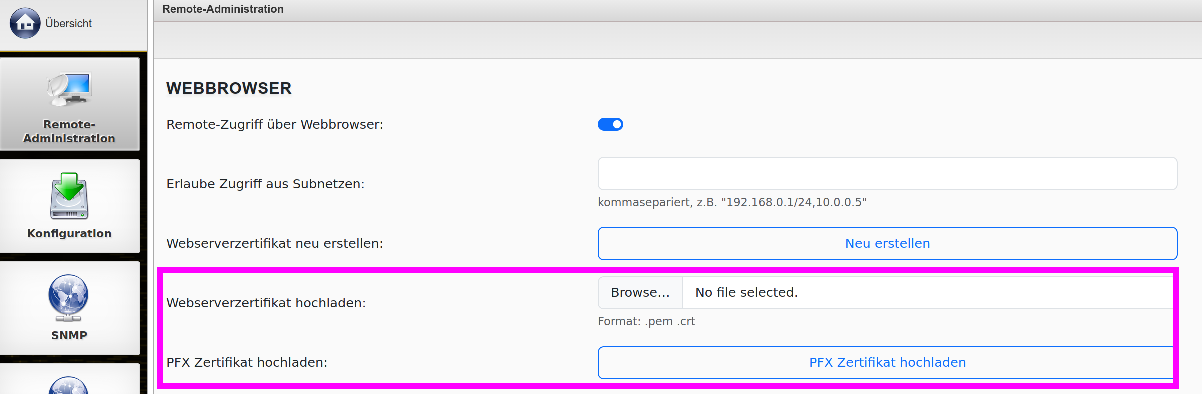
You can upload an existing certificate via the Kommbox under Remote Administration . Depending on the certificate format, select Upload web server certificate (PEM/Base64) or Upload PFX certificate.

Afterwards, a restart of the RangeeOS is necessary.
After the restart, the certificate will be displayed as valid in the browser.