

Install RangeeOS on Acer Travelmate P259
Last modified by Patrick Theil on 2026/11/19 15:18
On the Acer Travelmate P259, RangeeOS does not boot after installation from a USB flash drive. You must first enable the EFI file used to boot RangeeOS in the BIOS. To do this after installation from the USB flash drive, follow these steps:
- Open the BIOS during system startup by pressing the F2 key. Go to the
Security
page and select
Set Supervisor Password
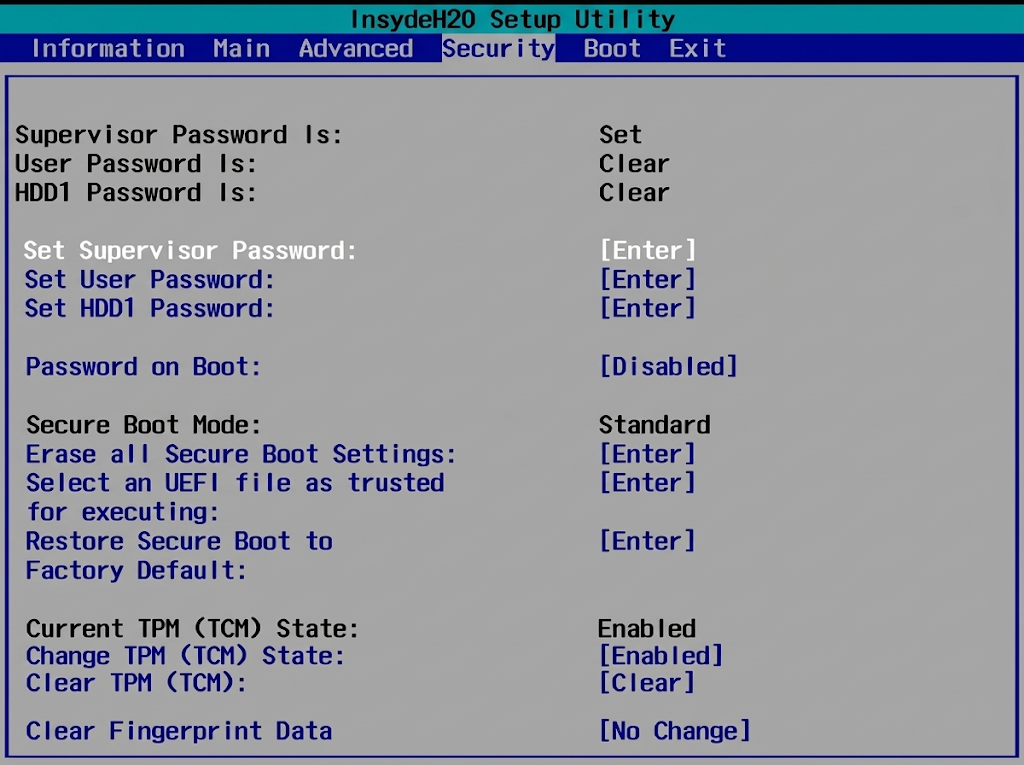
- Set a supervisor password:
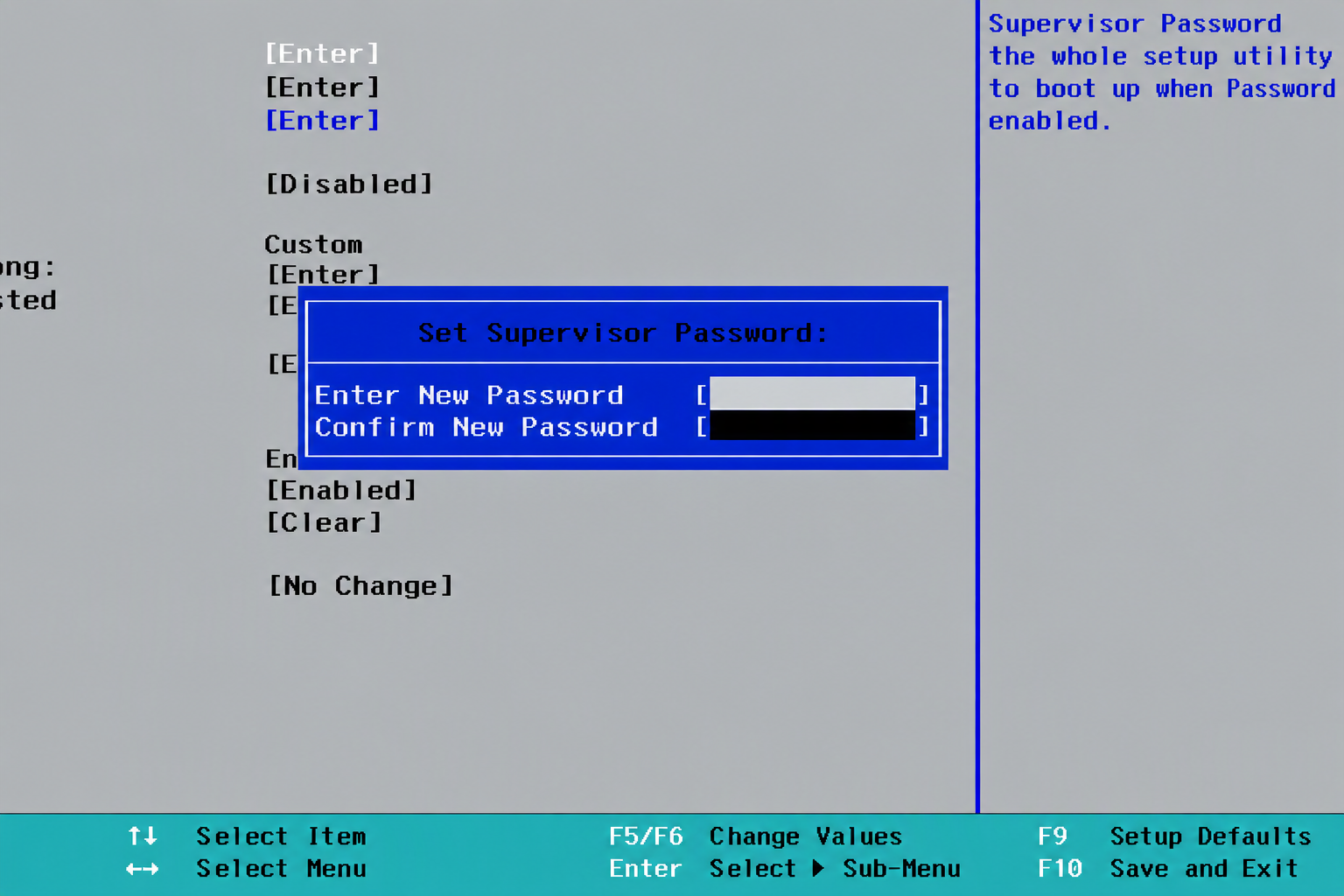
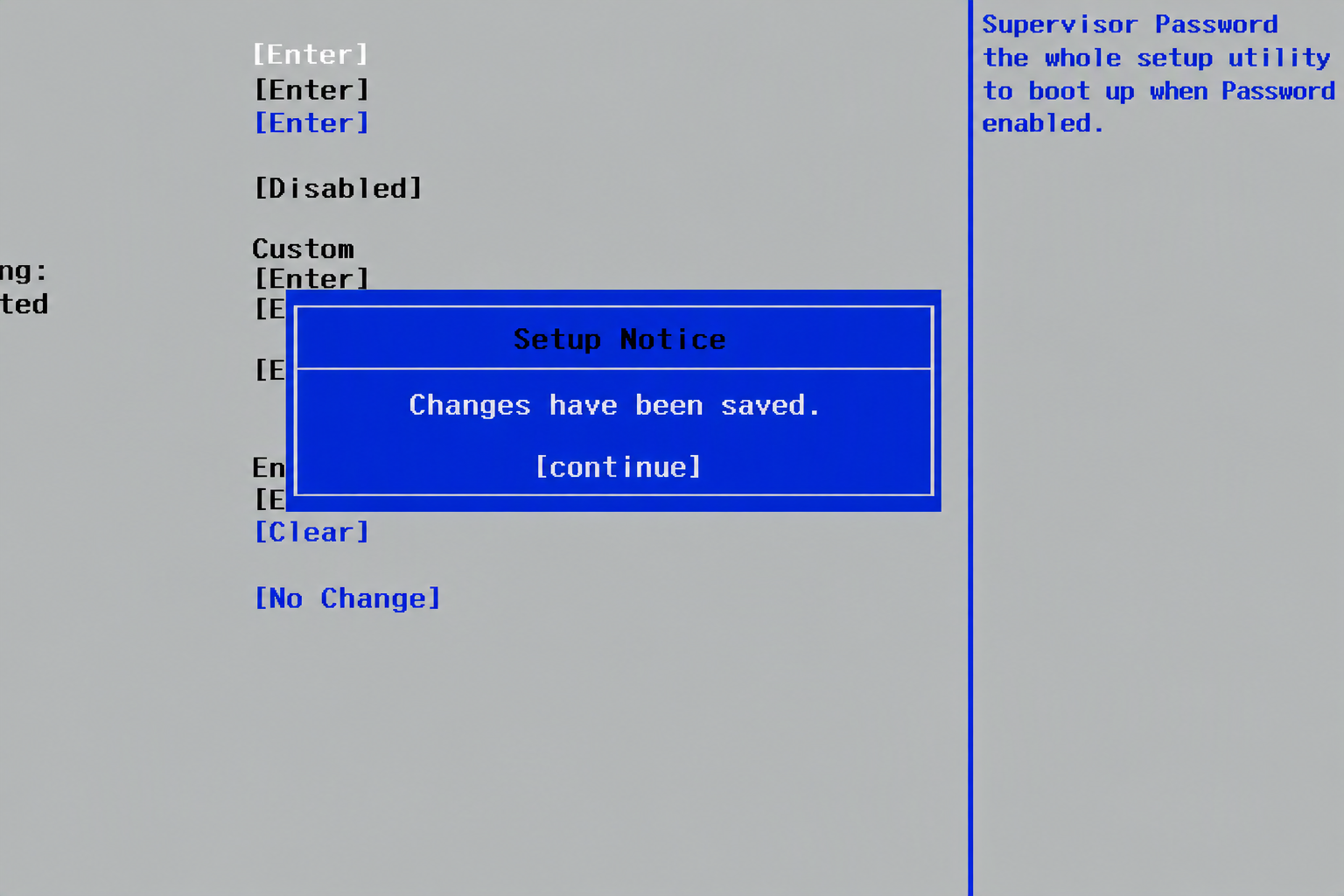
- Now select
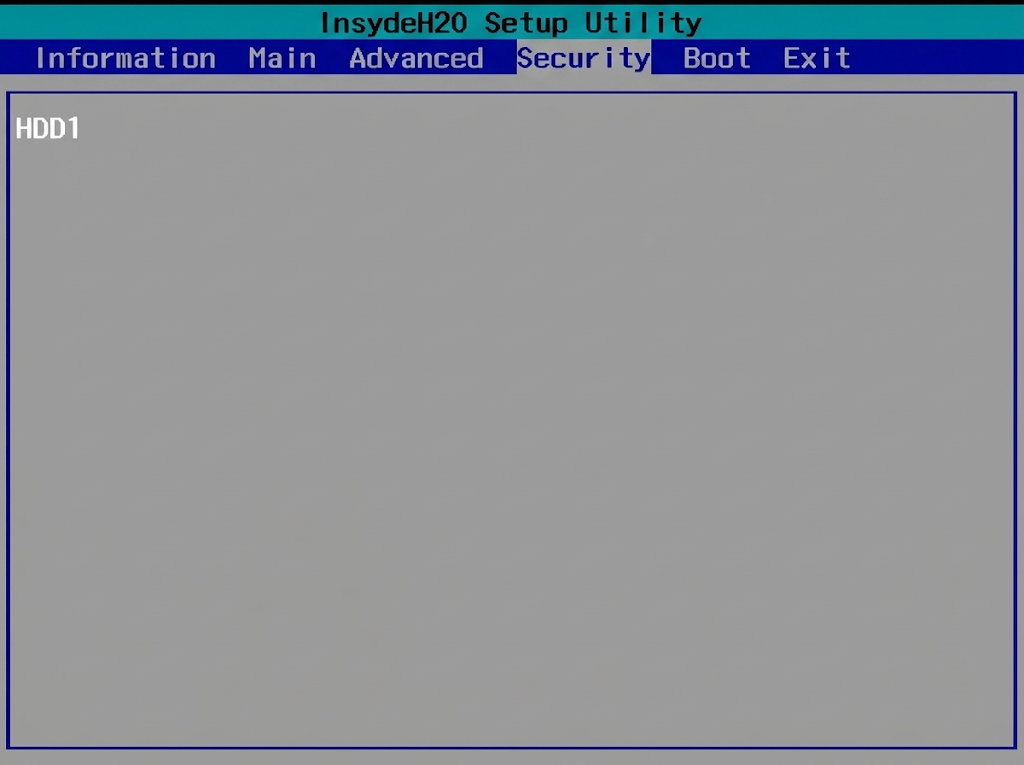
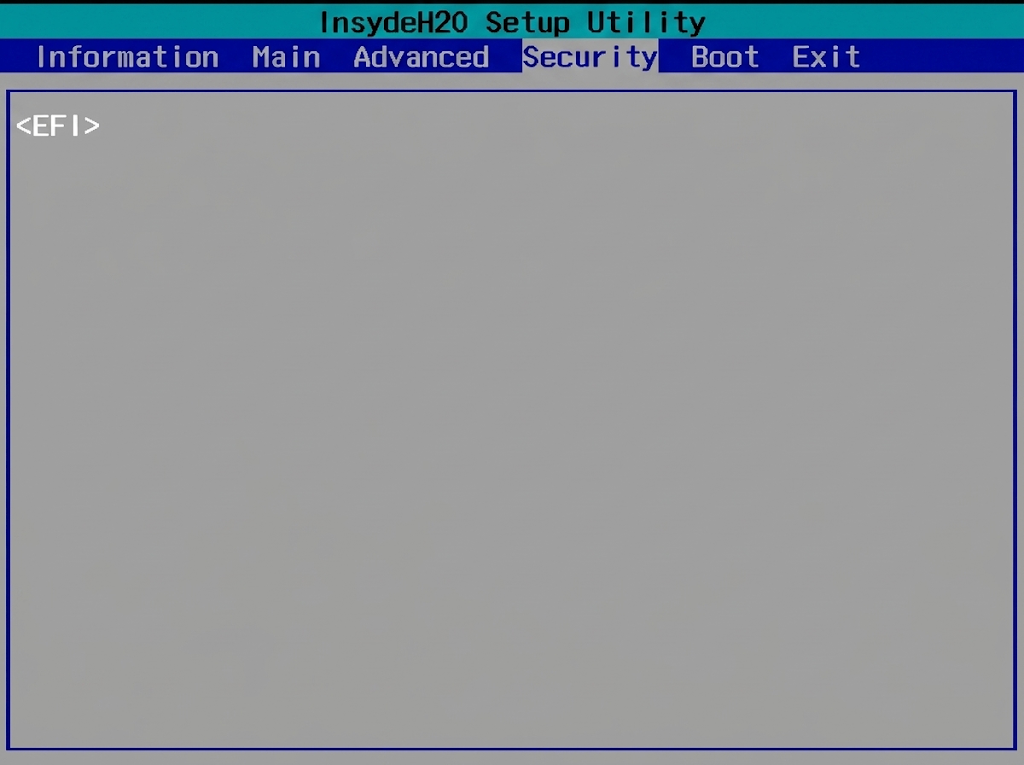
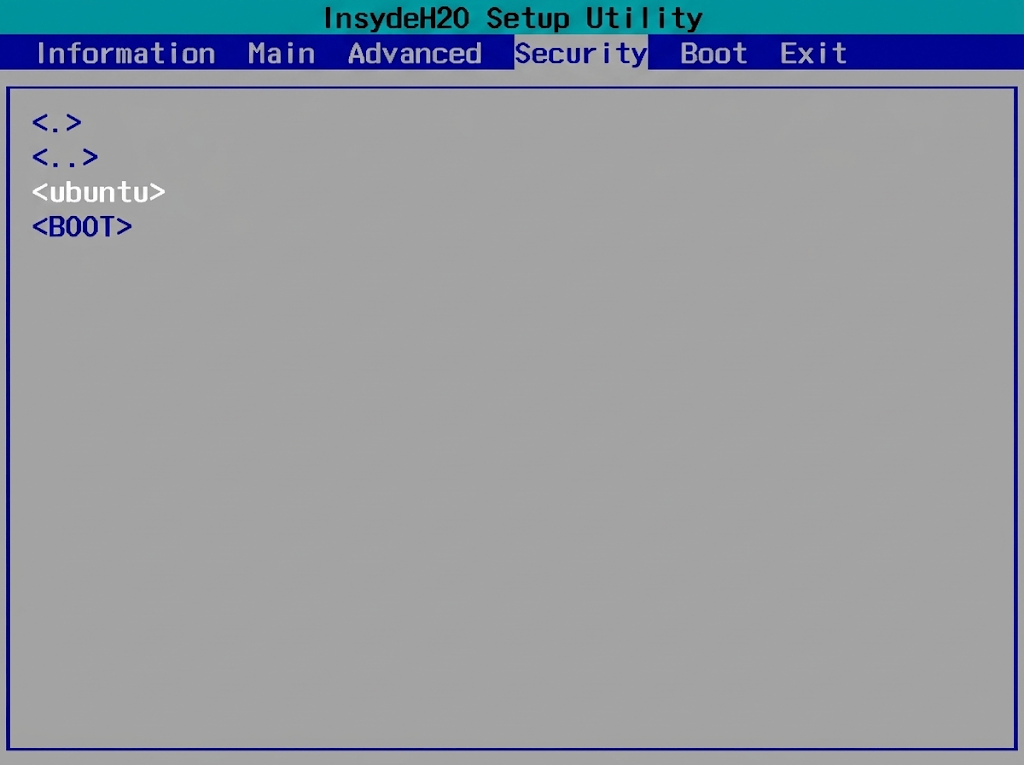
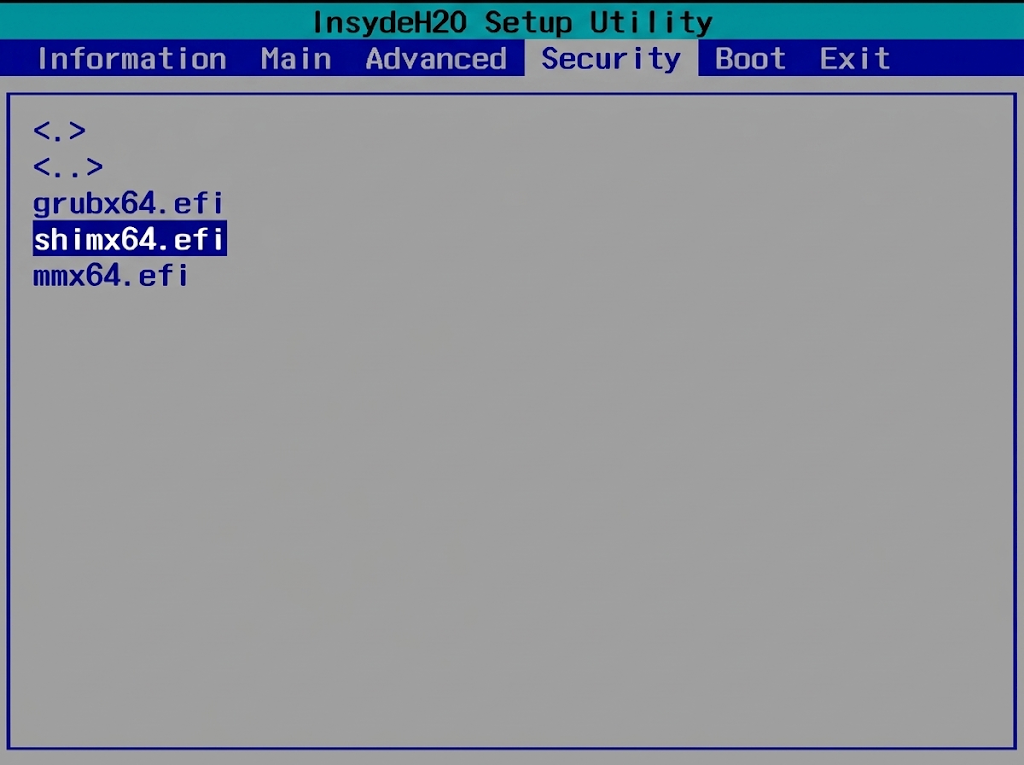
Select an UEFI file as trusted for executing
and confirm by pressing Enter
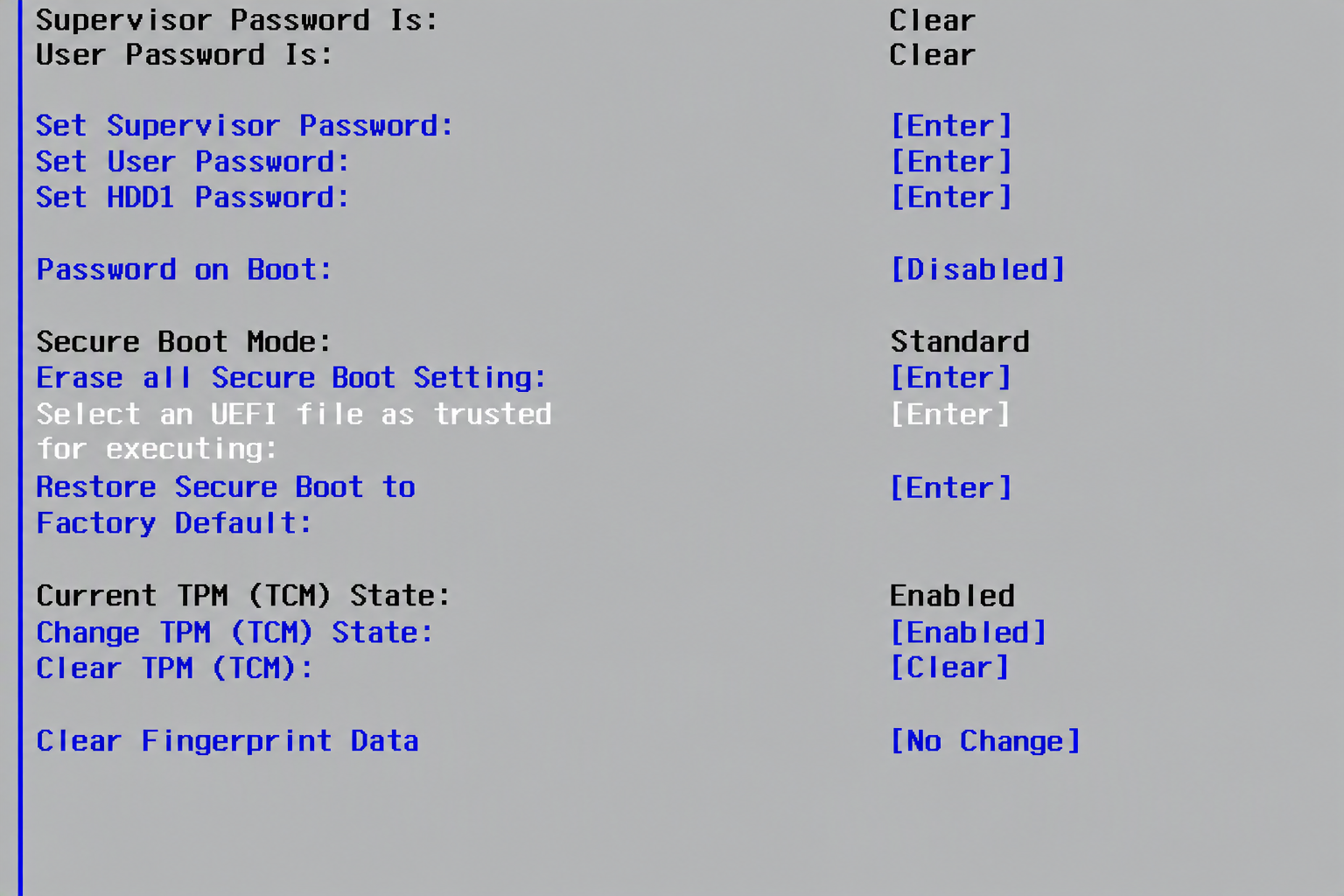
- Select
HDD1
→
EFI
→
ubuntu
→
shimx64.efi
:
- Enter a name for the RangeeOS boot option and confirm it by pressing Enter:
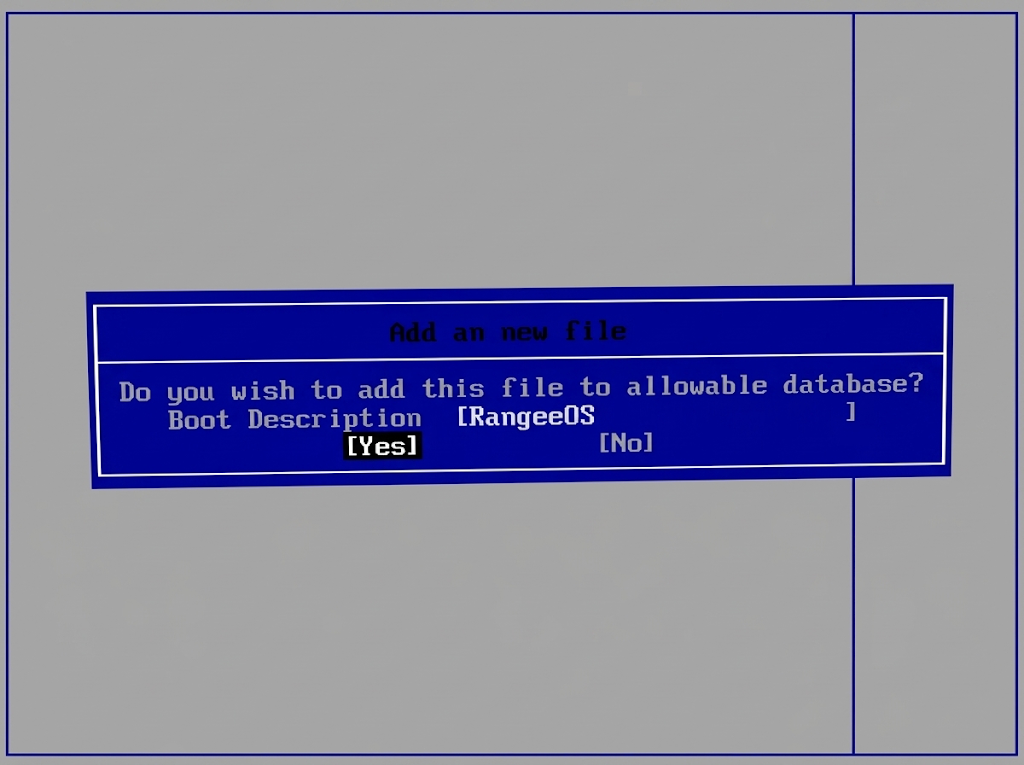
- Switch to the
Boot
tab; the boot option you created should now appear as the bottom entry in the list:
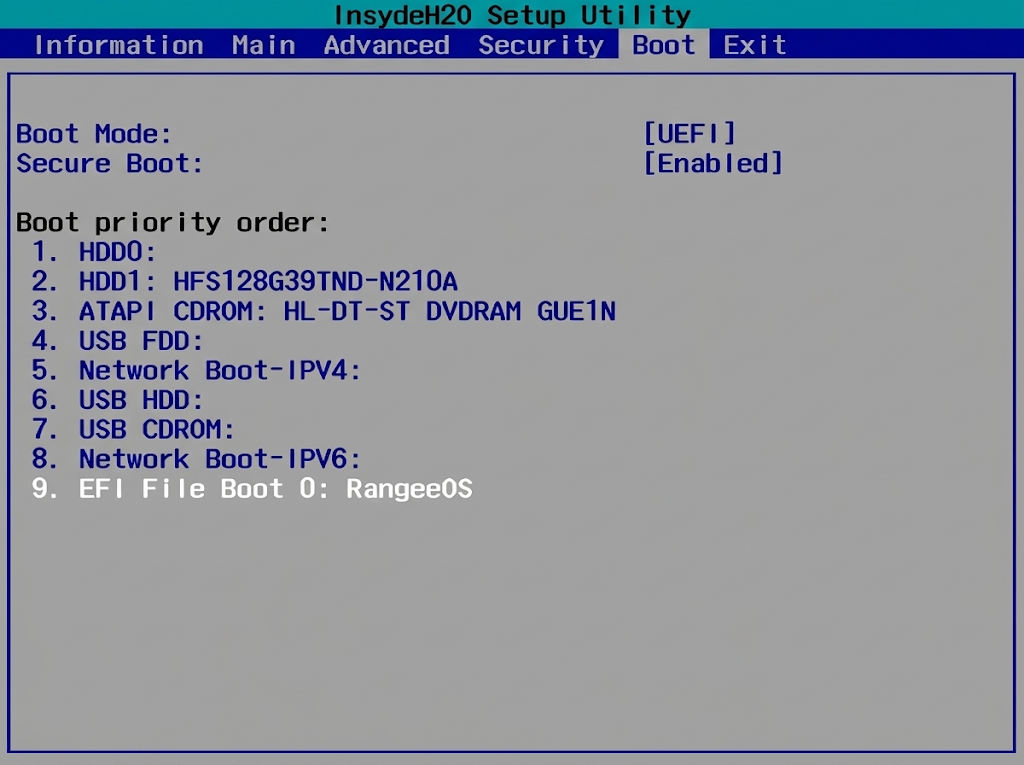
- Select this option and move it to the very top by repeatedly pressing the F6 key:
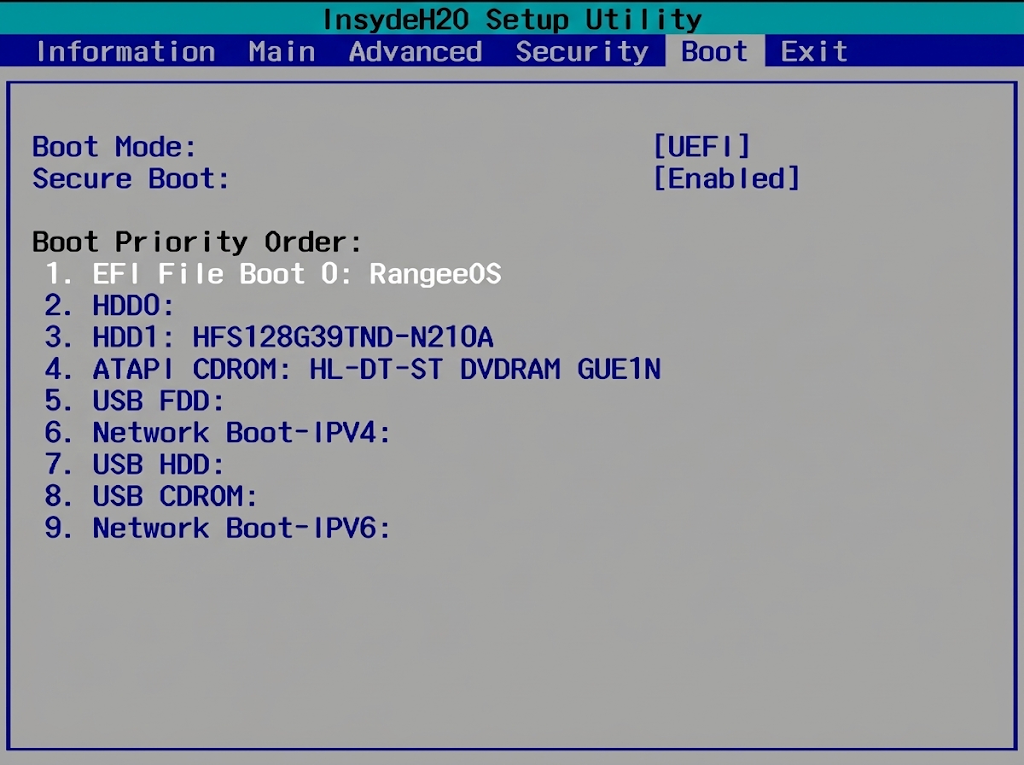
- Switch to the
exit
tab, select
Exit Saving Changes
, and confirm by pressing Enter:
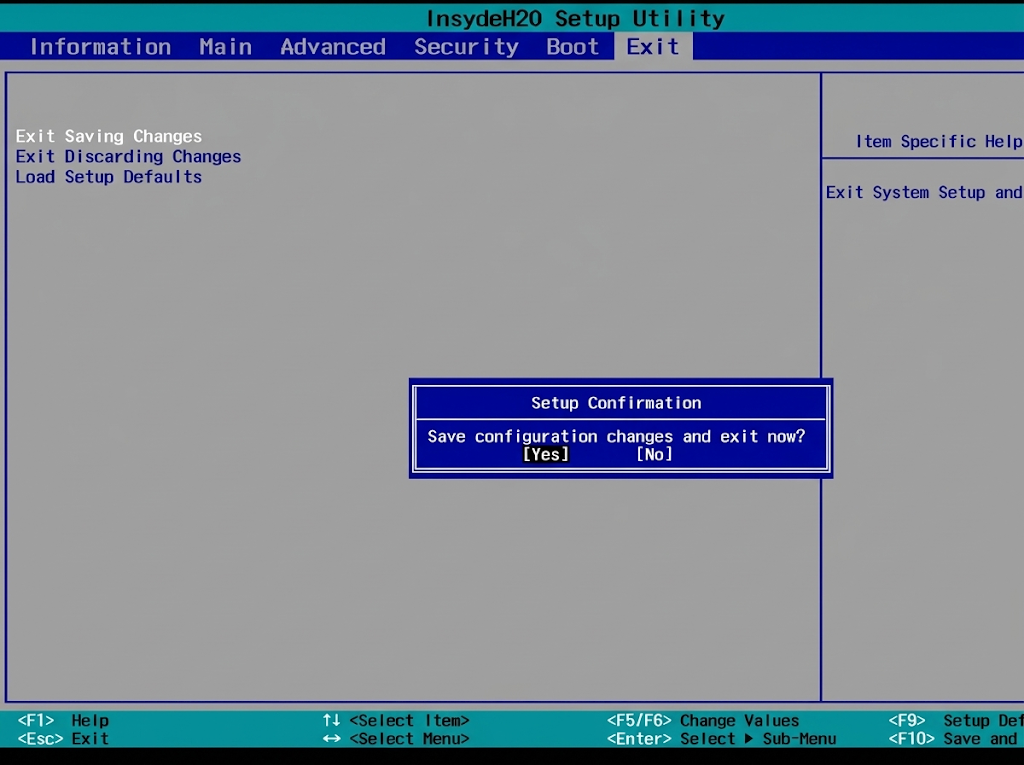
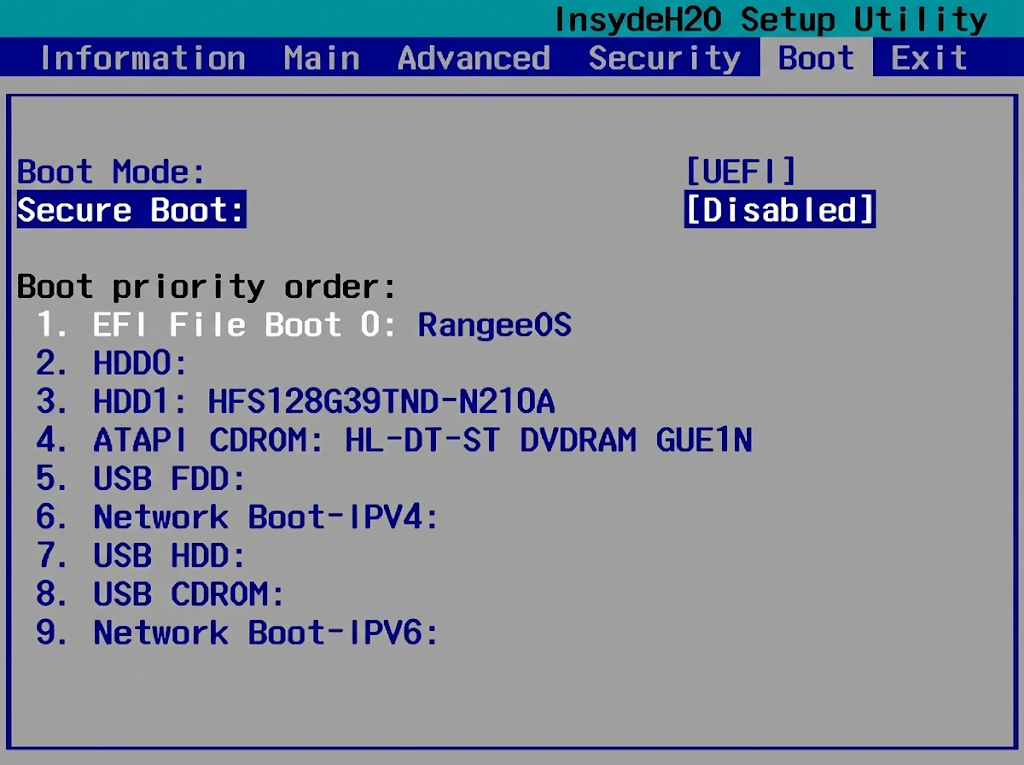
- Open the BIOS again during system startup by pressing the F2 key, go to the
Boot
tab, and set Secure Boot to Disabled:
- On the
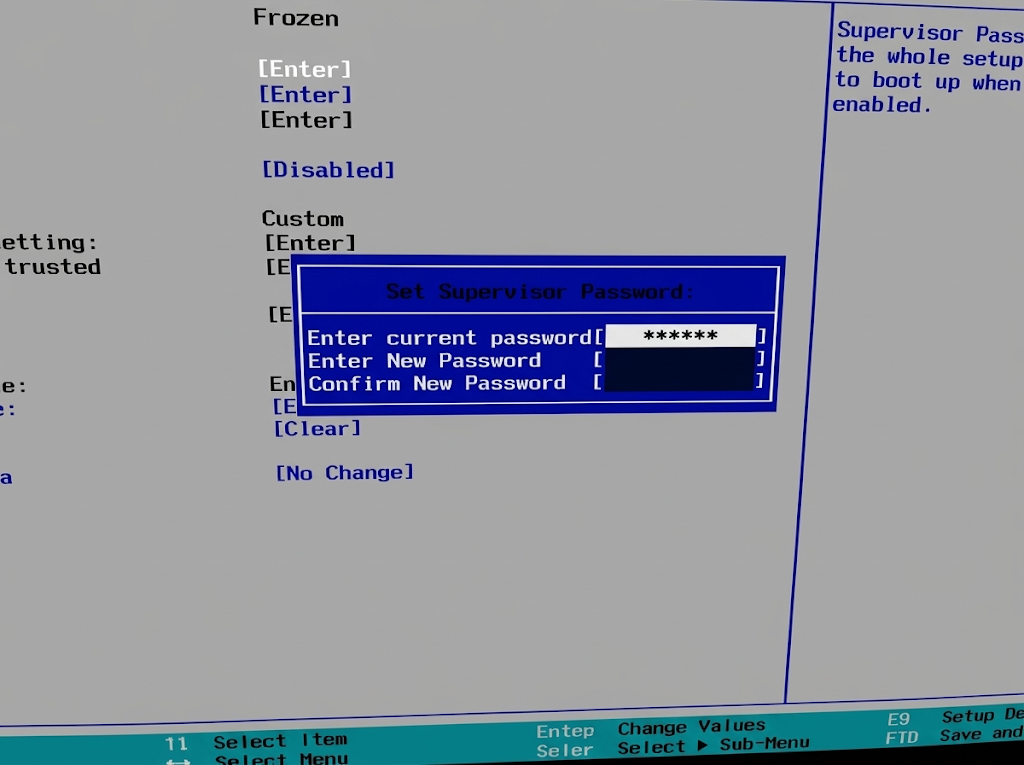
Security
tab, you can now remove the supervisor password you created in step 2:
- Switch back to the
exit
tab, select
Exit Saving Changes
, and confirm by pressing Enter.
The next time the system boots, it will start RangeeOS 13.