

Wiki source code of 3.D.C. Hotkey-Konfiguration
Version 9.1 by rangee rangee on 2021/09/24 16:05
Show last authors
| author | version | line-number | content |
|---|---|---|---|
| 1 | Rangee Kommbox für Windows bietet mit dem Windows Kommbox Hotkey Manager eine nützliche Applikation, mit der der Anwender schnellen Zugang zu bestimmten Informationen und Anwendungen hat. | ||
| 2 | |||
| 3 | Sollten einzelne Hotkeys nicht benötigt / erwünscht sein, können sie einfach abgewählt werden. | ||
| 4 | |||
| 5 | (% class="relative-table wrapped" style="width:1080px" %) | ||
| 6 | |(% style="width:400px" %)((( | ||
| 7 | (% class="strong" %)**{{status title="SHIFT"/}} + {{status title="STRG"/}} + {{status title="ALT"/}} + {{status title="K"/}}** | ||
| 8 | )))|(% style="width:457px" %)((( | ||
| 9 | Startet die Windows Kommbox | ||
| 10 | ))) | ||
| 11 | |(% style="width:400px" %)((( | ||
| 12 | (% class="strong" %)**{{status title="shift"/}} + {{status title="strg"/}} + {{status title="alt"/}} + {{status title="t"/}}** | ||
| 13 | )))|(% style="width:457px" %)((( | ||
| 14 | Öffnet die Eingabeaufforderung im Heimverzeichnis des aktuellen Windows-Benutzers | ||
| 15 | ))) | ||
| 16 | |(% style="width:400px" %)((( | ||
| 17 | (% class="strong" %)**{{status title="SHIFT"/}} + {{status title="STRG"/}} + {{status title="ALT"/}} + {{status title="C"/}}** | ||
| 18 | )))|(% style="width:457px" %)((( | ||
| 19 | Öffnet die Systemsteuerung (Control) | ||
| 20 | ))) | ||
| 21 | |(% style="width:400px" %)((( | ||
| 22 | (% class="strong" %)**{{status title="SHIFT"/}} + {{status title="STRG"/}} + {{status title="ALT"/}} + {{status title="n"/}}** | ||
| 23 | )))|(% style="width:457px" %)((( | ||
| 24 | Zeigt die Netzwerkkonfiguration | ||
| 25 | ))) | ||
| 26 | |(% style="width:400px" %)((( | ||
| 27 | (% class="strong" %)**{{status title="SHIFT"/}} + {{status title="STRG"/}} + {{status title="alt"/}} + {{status title="e"/}}** | ||
| 28 | )))|(% style="width:457px" %)((( | ||
| 29 | Öffnet den Windows Explorer | ||
| 30 | ))) | ||
| 31 | |(% style="width:400px" %)((( | ||
| 32 | (% class="strong" %)**{{status title="SHIFT"/}} + {{status title="STRG"/}} + {{status title="ALT"/}} + {{status title="r"/}}** | ||
| 33 | )))|(% style="width:457px" %)((( | ||
| 34 | Startet das System nach 10 Sekunden neu | ||
| 35 | ))) | ||
| 36 | |(% style="width:400px" %)((( | ||
| 37 | (% class="strong" %)**{{status title="SHIFT"/}} + {{status title="STRG"/}} + {{status title="ALT"/}} + {{status title="s"/}}** | ||
| 38 | )))|(% style="width:457px" %)((( | ||
| 39 | Fährt das System nach 10 Sekunden herunter | ||
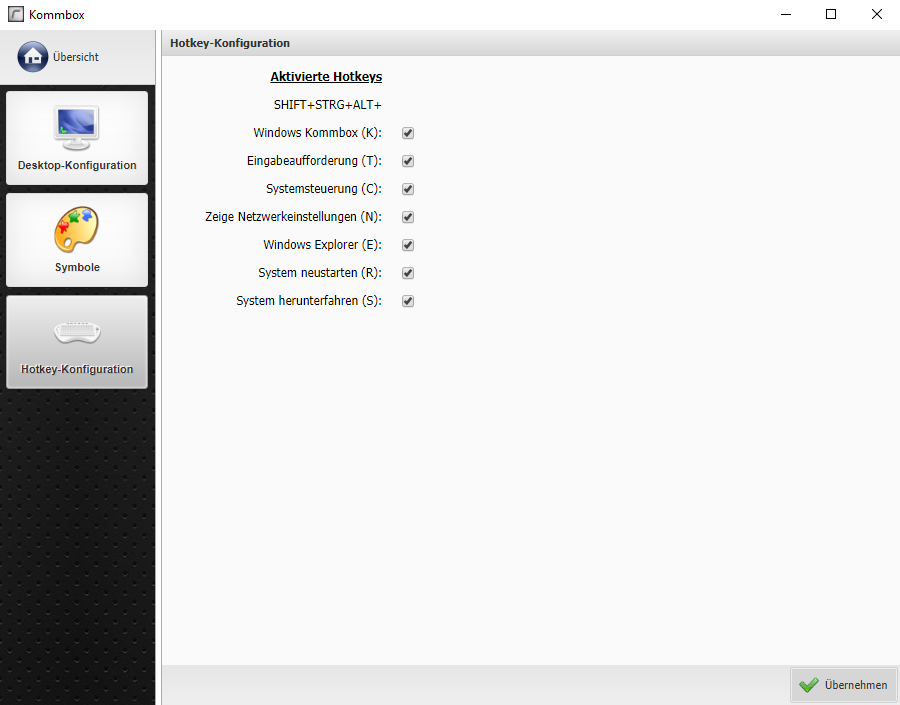
| 40 | ))) | ||
| 41 | |||
| 42 | (% class="box warningmessage" %) | ||
| 43 | ((( | ||
| 44 | Werden alle Hotkeys abgewählt, beendet sich das Programm nach einem Klick auf "Übernehmen". | ||
| 45 | |||
| 46 | Möchten Sie Windows Kommbox Hotkey Manager wieder verwenden, ist nach der Auswahl der Hotkeys und einem Klick auf Übernehmen ein Neustart nötig! | ||
| 47 | ))) | ||
| 48 | |||
| 49 | (% class="auto-cursor-target" %) | ||
| 50 | [[image:attach:kb hotkeys.png]] |